
This walkthrough is for anyone who has just created a 1xBet account on a phone and still sees an unconfirmed email address. If your account already shows a verified status, you can skip it entirely.
The process happens inside the application itself, across a few screens you reach from the menu. You will need your inbox open in a second app to grab the code. The whole routine takes a couple of minutes if the message arrives quickly.
where to find the verification code in the app
The confirmation request lives in your profile. Tap the menu icon at the top left, then choose My Account or Profile. From there, look for the Personal Information section where your email address is listed with a status marker. In the 1xBet app that marker reads either unconfirmed or confirmed, and it sits right beside the address you entered at registration.
Pressing that status opens the code entry screen. The application then sends a six-digit number to the mailbox you gave it. You switch to your mail application, copy the digits, and return to paste them into the field. The 1xBet app accepts the input immediately and flips the status to confirmed without any extra step.
After tapping, a modal appears titled “Account Confirmation” with an “Enter code” input box and a “Resend” button. Watch for a subtle “Sending” spinner that lasts roughly 2 to 5 seconds before the screen unlocks. If a system keyboard pops up, it may cover the bottom third of the dialog, so scroll up slightly. The “Resend” button usually carries a 60-second cooldown timer before it becomes tappable again.
- Open the menu icon, then tap My Account.
- Scroll to Personal Information and find your email row.
- Press the unconfirmed status to trigger a new code.
- Check your inbox, copy the six digits, and paste them.
- Wait for the status marker to change to confirmed.
what to do when the code never arrives
Sometimes the message simply does not land in the inbox within a minute or two. The first thing to check is the spam or promotions folder, since filters often move automated mail there without warning. A second attempt from the 1xBet app screen sends a fresh code right away, and you can press it several times without any penalty.
Firewall settings on some networks block the outgoing mail. Switching from mobile data to Wi-Fi, or the reverse, usually clears that up in a few seconds. If the address itself contains a typo, the application will never reach you. You will need to correct it in the profile screen before requesting another code.
Inside Gmail, the message often hides under the “Updates” or “Social” tabs rather than Primary. Apple Mail sometimes needs a manual pull-to-refresh gesture before the new header shows up. Allow up to 3 minutes for large mail providers during peak traffic hours. Corporate servers can add another minute or two of relay delay.
checking the status after you enter the digits
The confirmation does not always update the screen by itself. A quick way to confirm that 1xBet accepted your code is to leave the profile page and come back to it. The status marker beside your email address should read confirmed, and any yellow warning banner about pending verification will disappear from the top of the screen.
- Tap the back arrow to exit the Personal Information screen.
- Reopen My Account from the main menu.
- Read the status marker next to your email address.
- Check for the absence of a verification warning banner.
- Restart the application if the marker still shows unconfirmed.
A full application restart takes about 5 seconds on mid-range devices. Close the app from the multitasking pane, then tap the icon to launch it again. Navigate back to My Account and re-check the status field. If it still shows unconfirmed after a restart, wait a minute before trying the code once more.
On an iPhone, the mail application can interfere with receiving codes. If that happens, open Safari on iPhone settings and confirm your account is signed in correctly, then request the code again.
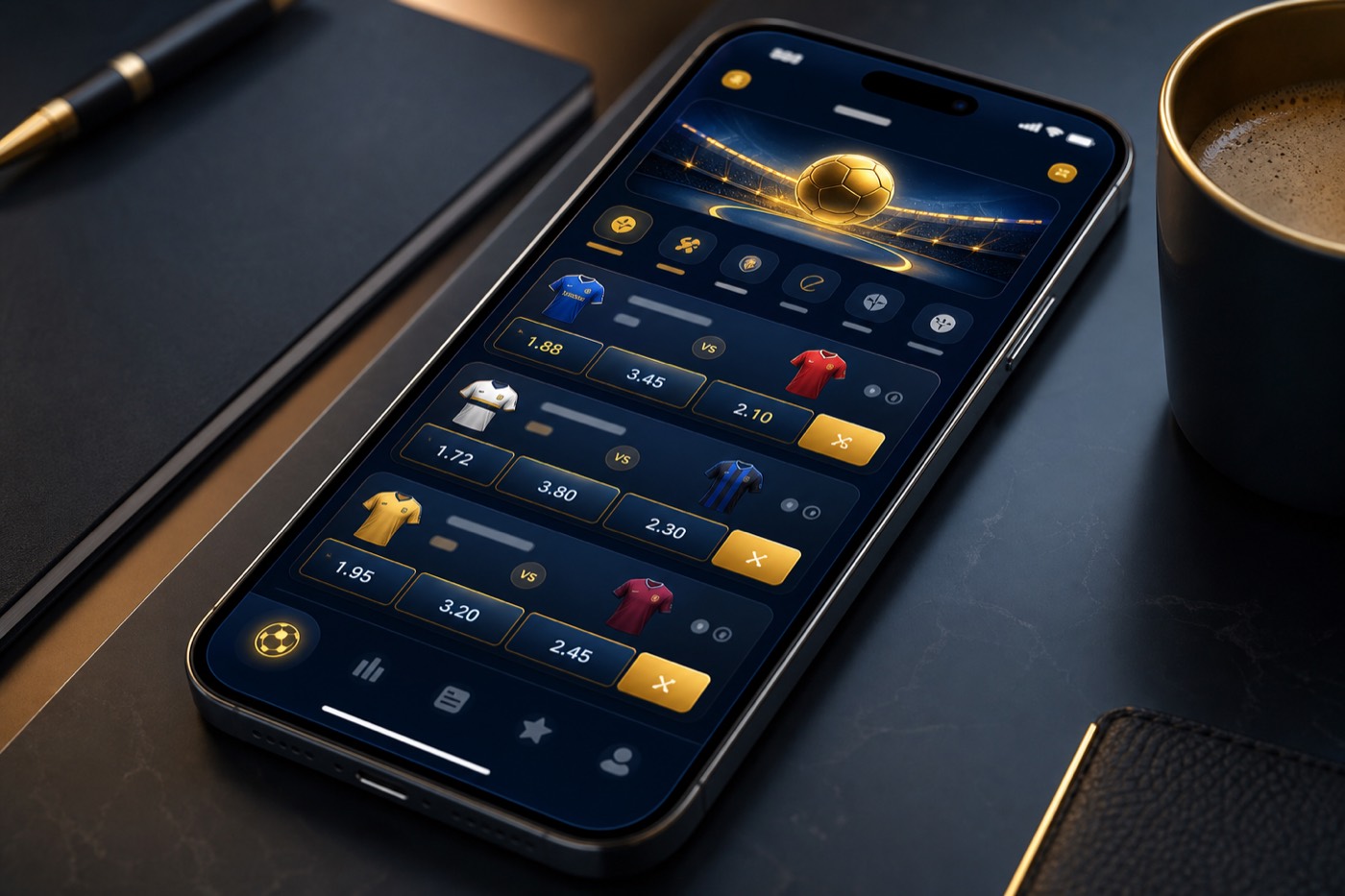
Notification and account settings that control verification
- Open the profile icon, then choose Settings and look for the email preference row.
- Turn on push notifications so a new verification mail arrives in your phone’s shade.
- Check the spam folder in your mail app, because some codes land there by default.
- Enable the “confirm your contact details” prompt, which repeats until you enter the code.
The verification row sits with your other account details inside the 1xBet profile menu. When the toggle is on, the application sends a short notification each time a code is created. That notification carries the same link you would find in the inbox, so you can tap it directly. If you keep it off, you will need to open your mail client manually every single time.
On Android, open the system Settings app, tap Apps, and select 1xBet from the list. Ensure the Notifications switch is on, then enable the “Banners” and “Lock screen” channels for immediate alerts. On iOS, navigate to Settings, scroll down to 1xBet, and toggle on the Notifications permission. Without this, the verification prompt stays hidden until you manually launch the application.

Verification paths compared side by side
The 1xBet app lets you confirm a contact point in more than one way, and each has a slightly different feel. The table below lines up the common routes you will see while working from the phone. Pick the row that matches how you registered the account in the first place.
| Method | Where it appears | What you tap |
|---|---|---|
| Email link | Mail inbox | Confirm button in the message |
| Email code | Mail inbox and app field | Six-digit number |
| SMS code | Phone messages | Six-digit number |
| Push prompt | Notification shade | Approve action button |
The email route is the slowest of the four because it depends on your mail provider. SMS and push usually complete within a few seconds on a stable connection. If you are registering with 1xbet android app for betting, keep the betting application open while the check runs. Otherwise the screen may time out and you will start the loop again.
The SMS path opens a dedicated “Enter code” screen with a numeric keypad that slides up from the bottom edge. Look for a “Resend code” link beneath the input, which typically unlocks after 45 seconds. The push prompt appears as a banner across the top of the screen rather than in the shade. Tapping “Approve” within the banner completes the check without ever opening the main menu.
FAQ
How long does the email check take in the 1xBet app?
Most users see the message within a minute or two on a normal connection. If nothing arrives, refresh your inbox once, then confirm the address again from the profile menu.
What if the code field says it is expired?
The code has a short life, so request a fresh one from the same screen. Enter the new number right away instead of waiting for the page to reload itself.
Can I switch the verification email later?
Yes, you can edit the address in the profile section and repeat the confirmation flow. The previous address stays on file until the new one passes the check.
Does verification affect my bet slip or open accumulators?
No, pending selections stay exactly where they are while you confirm the address. The application only updates the account details row, leaving your active wagers untouched.